
2023 HPHConnect Instructions
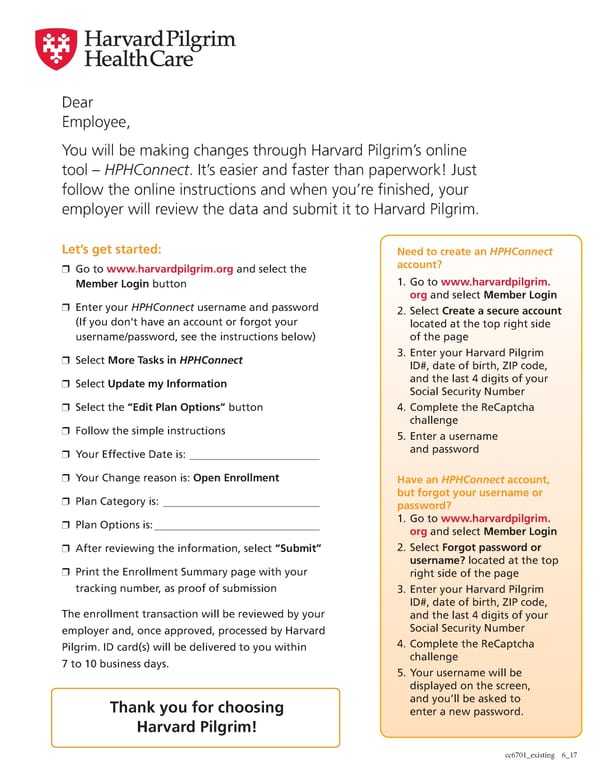
Dear Employee, You will be making changes through Harvard Pilgrim’s online tool – HPHConnect. It’s easier and faster than paperwork! Just follow the online instructions and when you’re 昀椀nished, your employer will review the data and submit it to Harvard Pilgrim. Let’s get started: Need to create an HPHConnect ❒ Go to www.harvardpilgrim.org and select the account? Member Login button 1. Go to www.harvardpilgrim. org and select Member Login ❒ Enter your HPHConnect username and password 2. Select Create a secure account (If you don’t have an account or forgot your located at the top right side username/password, see the instructions below) of the page ❒ Select More Tasks in HPHConnect 3. Enter your Harvard Pilgrim ID#, date of birth, ZIP code, ❒ Select Update my Information and the last 4 digits of your Social Security Number ❒ Select the “Edit Plan Options” button 4. Complete the ReCaptcha challenge ❒ Follow the simple instructions 5. Enter a username ❒ Your Effective Date is: and password ❒ Your Change reason is: Open Enrollment Have an HPHConnect account, ❒ Plan Category is: but forgot your username or password? ❒ Plan Options is: 1. Go to www.harvardpilgrim. org and select Member Login ❒ After reviewing the information, select “Submit” 2. Select Forgot password or username? located at the top ❒ Print the Enrollment Summary page with your right side of the page tracking number, as proof of submission 3. Enter your Harvard Pilgrim ID#, date of birth, ZIP code, The enrollment transaction will be reviewed by your and the last 4 digits of your employer and, once approved, processed by Harvard Social Security Number Pilgrim. ID card(s) will be delivered to you within 4. Complete the ReCaptcha 7 to 10 business days. challenge 5. Your username will be displayed on the screen, Thank you for choosing and you’ll be asked to enter a new password. Harvard Pilgrim! cc6701_existing 6_17
 2023 HPHConnect Instructions