
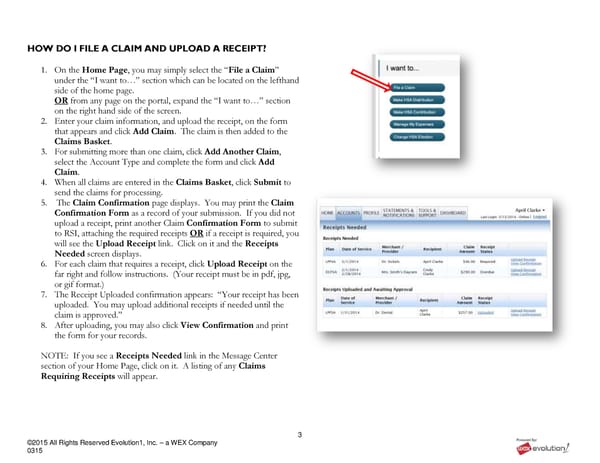
3 ©2015 All Rights Reserved Evolution1, Inc. – a WEX Company 0315 HOW DO I FILE A CLAIM AND UPLOAD A RECEIPT? 1. On the Home Page, you may simply select the “File a Claim” under the “I want to…” section which can be located on the lefthand side of the home page. OR from any page on the portal, expand the “I want to…” section on the right hand side of the screen. 2. Enter your claim information, and upload the receipt, on the form that appears and click Add Claim. The claim is then added to the Claims Basket. 3. For submitting more than one claim, click Add Another Claim, select the Account Type and complete the form and click Add Claim. 4. When all claims are entered in the Claims Basket, click Submit to send the claims for processing. 5. The Claim Confirmation page displays. You may print the Claim Confirmation Form as a record of your submission. If you did not upload a receipt, print another Claim Confirmation Form to submit to RSI, attaching the required receipts OR if a receipt is required, you will see the Upload Receipt link. Click on it and the Receipts Needed screen displays. 6. For each claim that requires a receipt, click Upload Receipt on the far right and follow instructions. (Your receipt must be in pdf, jpg, or gif format.) 7. The Receipt Uploaded confirmation appears: “Your receipt has been uploaded. You may upload additional receipts if needed until the claim is approved.” 8. After uploading, you may also click View Confirmation and print the form for your records. NOTE: If you see a Receipts Needed link in the Message Center section of your Home Page, click on it. A listing of any Claims Requiring Receipts will appear.
 RSI Member Portal Quickstart Guide Page 2 Page 4